glocker

A user guide

Breaking digital
habits with glocker

Introduction

Glocker is a program that helps you to break digital habits. It is quite opinionated and specifically designed to help me break habits that I had with my laptop. I’ve had a good amount of success with it and I feel confident that there are other people out there who have a setup similar to mine that might benefit from the software.

This document is a brief description of my understanding of the patterns that amplify these habits and how glocker can help you to break them. Think of it as a “user guide” that intertwines the psychological aspects of how to break habits and the technical measures available in glocker to break those.

First, some history. When I started to freelance, I used my personal laptop for customer projects. This blurred the line between professional and personal. A lot of things that I did during my personal time (e.g. games, YouTube etc.), crept into my work time. I was not able to do anything here since I had just one machine and couldn’t afford another. However, when I started my own agency, I bought a separate machine for my work and decided to take some steps to lock down my machine. Nothing super sophisticated. Some simple shell tricks to make it complicated to access time wasters like twitter.com etc. I was surprised at how well it worked and then made this part of my machine setup.

Over the years, this setup became a pile of hand rolled shell scripts and things which were effective but not sufficiently so. I figured that it was time for me to move to something more “professional” like Plucky or Accountable2You but neither really cut it for me. The primary mismatch was my OS/Browser combination (Linux and Firefox) and there were a few other issues as well. This was about the time when generative AI and coding assistants were hitting the market so I decided to make this my first AI assisted project and hence glocker was born.

The first commit was in Oct 2025 and I used Aider as my coding harness for a long time. After a couple of months, I switched to Claude Code and that’s what I’m using now.

Breaking habits

I’ve watched myself quite carefully to see when I get distracted and how and the program uses techniques that have worked for me.

Several books have been useful to me for this. Two that I can highly recommend are.

  1. Indistractable by Nir Eyal
  2. Atomic Habits by James Clear

The strategies in the books focus mostly on creating good habits rather than breaking bad ones so there’s some adaptation we need to do. However, they’re still worth reading.

Habits strengthen and become easier with repetition. If you’ve gone to the gym for a day, it can require quite a bit of discipline to go the next day. However, if you have gone for fifty days, the fifty-first day won’t be so hard. The mind, for some strange reason, enjoys routine and structure. This is true for good habits as well as bad. Bad habits often start off because of some tiny trigger. A little desire for a quick shot of pleasure or happiness. Like a stream trickling down a mountain. The path it chooses is mostly random. Repeat it long enough though, and just like the stream, it cuts the rock to create a way for it to flow. The deeper the groove, the harder it is to change the path.

How does this help us? Well, if we have a habit and we make it hard to repeat it, it weakens and over time, doesn’t require much effort to break. Making it hard requires self-discipline and that’s not always at hand when you’re fighting the triggers and urges. That’s where external cues and support comes into the picture. My original scripts which prevented me from accessing twitter were quite simpler. I aliased twitter.com to 127.0.0.1 using /etc/hosts and made the hosts file immutable using chattr. If I had to enable it, I needed to first make it mutable and then edit and save it. The stream used to flow directly into YouTube territory but now, it needed to take a diversion into chattr and a file edit which was, surprisingly, jarring enough to prevent me from accessing it on the work laptop.

Another habit I had on my personal machine was to either doomscroll or watch YouTube clips into the night messing up my sleep. I wrote a cron job that would kill a list of programs every 5 seconds after a certain time in the night and when that happens a few times, the smoothness of doom scrolling is interrupted and I started going to bed earlier.

Glocker is a combination of all the strategies and a few more niceties to make it hard to disable and also maintain statistics which might be useful to break habits in the future.

Glocker

System components

Glocker is a suite of 4 programs.

  • glocker - This is the main daemon program. It’s also the first thing that I wrote for myself. It’s called glocker because I wrote it in golang and it was easy to pronounce. It manages blocking sites, maintaining usage statistics, the command line interface for various functions etc.
  • glocklock - This is a helper program that can lock the screen for a pre determined amount of time if you’re having a hard time staying away from your habits. Think of it as a screensaver but which you cannot unlock except after a fixed amount of time.
  • glockpeek - Glockpeek is a program that can read usage and behaviour information logged by glocker and give you insights.
  • glockdoc - This is a tiny helper program that can be used to see if glocker is active and if not, report it to anyone.

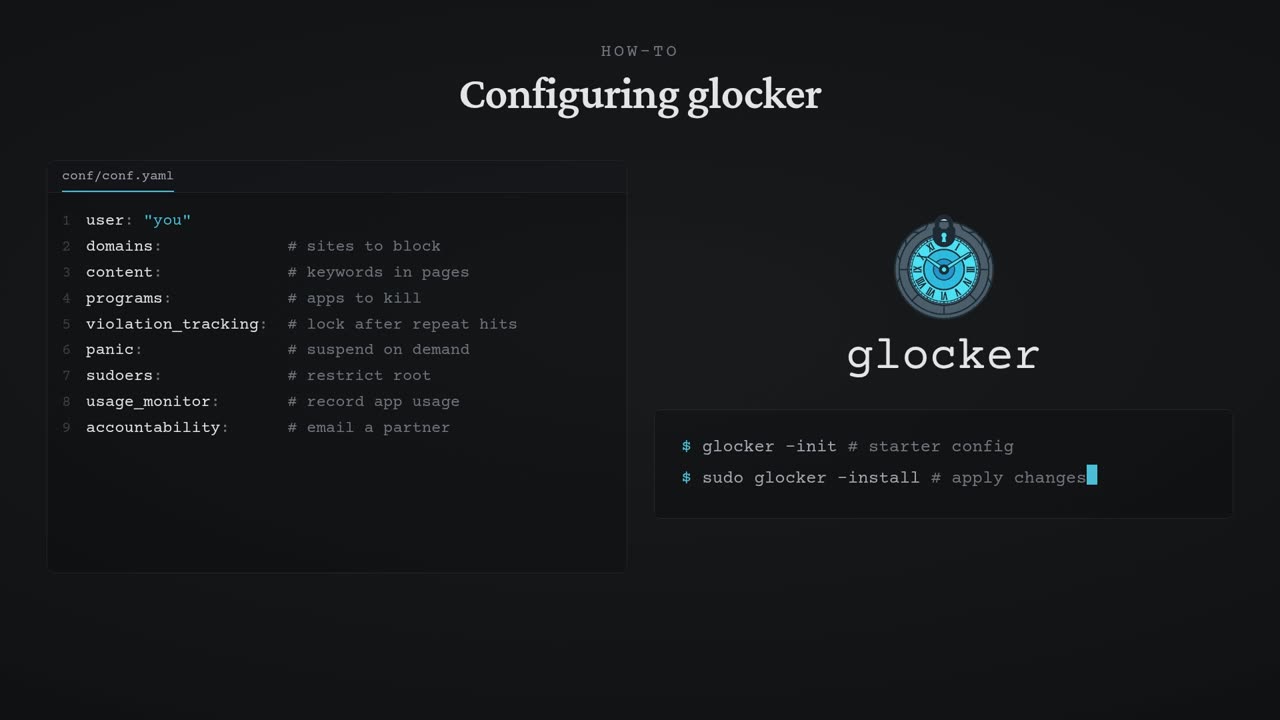
The behaviour of Glocker is controlled by the config file in conf/conf.yaml in the source directory. There’s a sample file (conf/conf.yaml.sample) there. You need to copy it, remove the .sample and edit it before installing glocker. Let’s walk through the config file. It’s a good way to understand what the capabilities of the program are.

The glocker config file.

We will cover the config file below. It’s quite detailed. To get a quick initial file with decent basics, use glocker -init

Configuring glocker

System behaviour

  • log_level - This is just to set the logging level of glocker. “info” is usually sufficient for personal use. “debug” if you’re doing feature development.
  • user - This tells Glocker who you are. Glocker runs as root so it needs to be told this explicitly. Several things below use it so make sure you set it correctly.

Blocking

Glocker essentially does two things. One - It blocks certain domains, keywords and applications. Two - It gathers statistics about usage so that behaviour patterns can be identified and acted upon.

Let’s talk about blocking first.

Domains

This is in the domains: stanza. The enabled key turns this feature on. You’d probably want this on since it’s the most useful feature and what I originally built back in the day. The hosts_path points to the default hosts file on Linux machines so you probably don’t need to change it.

The list key is what contains the list of domains to block. Basic blocking can be done by just listing the domain under the list key. For example, if you want to block twitter.

list: 
  - name: "twitter.com"
  

it will be blocked and you cannot view it. There are some sites which you want to block most of the time but might want to unblock for short periods (e.g. YouTube if you need to watch a tutorial about something you need). You can configure this by setting an

list: 
  - name: "twitter.com"
    unblockable: true
    

You can unblock such domains by issuing a glocker -unblock twitter.com:research command which will unblock twitter.com. The unblocking settings are inside the domains.unblocking stanza. There are a few settings inside here that we can cover. First of all the reasons key gives a list of reasons which are acceptable inputs to the -unblock command. If you’re honest with these, it’s recorded so that you know why you’re unblocking. There’s a log_file which you probably shouldn’t change. It’s where unblocks are recorded. When you unblock, the site will remain unblocked for temp_unblock_time minutes. And finally, there’s a cap on the number of times you can unblock which is specified in max_per_day. A typical unblocking section looks like

unblocking:
  reasons: ["work", "research", "emergency", "entertainment", "education", "relax"]
  log_file: "/var/log/glocker/unblocks.log"
  temp_unblock_time: 20        # minutes a domain stays unblocked
  max_per_day: 3               # max unblocks per calendar day (0 = unlimited)

Going back to the list of domains, you might want to block domains only during some times of the day. You specify that like so (e.g. block twitter.com from 9:00 to 17:00 and again from 21:00 to 2:00) during weekdays but relax the schedule on weekends.

- name: "twitter.com"
  unblockable: false
  block_windows:
    # Blocked during work hours on weekdays
    - start: "09:00"
      end: "17:00"
      days: ["Mon", "Tue", "Wed", "Thu", "Fri"]
    # Also blocked in the evening (to encourage sleep)
    - start: "21:00"
      end: "2:00"
      days: ["Mon", "Tue", "Wed", "Thu", "Fri", "Sat", "Sun"]
      

For large lists of domains, it supports an !include directive like so

list:
     - !include conf.d/domains-social-media.yaml
     

Each of the files !included here are a list of domains. This is convenient when the list gets large. There is a helper program called update_domains.py which can be used to write out several large domain lists from public sources.

When you hit a blocked domain from any program (not just your browser), an alarm can be configured using the blocked_access_command. I set it to something like mpg123 /home/user/Downloads/alarm.mp3.

Sometimes, you end up visiting a site which you decide you want to stay off of. You can use the glocker -block to block it on an ad-hoc basis. This will block the domain but it will not survive a reinstall. We will come back to this later. However, for many programs (mostly browsers), resolved hostnames are cached. If you include a program inside the domains.kill_on_block list, glocker will kill them when you block a domain so that resolved domains will get cleared. It’s a little inconvenient but it’s effective.

Programs

One of the other problems I had was that I’d sit in the evening and end up playing casual games. This would affect my bedtime. Glocker can kill programs just like it blocks domains and the stanza that handles this is programs. Setting enabled to true will turn this on. The check_interval_seconds is how frequently it will check for the programs running. 5 is reasonable and it’s the default. Then there’s a list. An entry like

list:
  - name: "brave"
  

will kill the Brave browser as soon as it’s seen. Just like the domains, you can specify time slots where the killing will happen. Here’s a more detailed example to make sure Brave can’t be run from 20:00 to 5:00 the next day.

- name: "brave"
  kill_windows:
    - start: "20:00"
      end: "05:00"
      days: ["Mon", "Tue", "Wed", "Thu", "Fri", "Sat", "Sun"]

Sometimes though, a program that you genuinely need (e.g. your primary browser - firefox) gets killed in a kill window but you still need it. If you mark a program with extendible:true, a one time one hour extension can be requested for it every 24 hours with glocker -extend firefox:work where you specify the reason for extension and the program similar to how we unblock domains using -unblock. And similar to the domains, there’s a -block-app command for glocker which will allow you to mark a program as not allowed. It will start killing it if it starts. And just like domains, this is not a persistent change. It will not survive a reinstall.

I add browsers which aren’t supported by Glocker and which bypass local DNS lookup (e.g. like Mullvad) to this so that they’re not allowed to run.

Content

Sometimes, you don’t want to block a site completely. But you want to block sites which have certain words in them. For example, you can block all sites that refer to “gambling” either in the URL or in the body. These are controlled in the content stanza. It also has an monitoring.enabled key similar to the others and a monitoring.log_file to record violations. Then we have the keywords sub stanza which has url_keywords and content_keywords keys that have lists of words which, if detected, will cause the site to get blocked. There are of course some sites which shouldn’t be blocked even if the string is there and these can be specified in the keywords.whitelist list. Wikipedia is an good example in my own whitelist.

This works only in supported browsers. I use Mozilla Firefox myself and one of the reasons why I ended up writing this program is because things like plucky didn’t support Firefox. An extension runs inside the browser. It’s a small add-on that periodically pulls the keyword lists from glocker and then watches the address bar and the text of every page you open. The moment it spots a blocked keyword, it reports the hit back to glocker and redirects the tab to a blocked page, so you never really get to see the content. glocker records that hit (in the monitoring.log_file above), and it also counts as a violation. The extension also prevents you from opening incognito windows and will apply to all FF browser profiles.

Chrome and Chromium are supported similarly. The installer sets up a browser policy that installs the extension automatically for all profiles, and it can’t be disabled or removed. Chrome doesn’t allow an extension to be forced into incognito windows, so glocker turns off incognito and guest windows completely. It also turns off “secure DNS” (and Brave’s Tor windows) since those skip the local DNS lookup that domain blocking relies on. Chrome, by design, checks glockerapp.com every few hours for updates to the extension so that it stays current.

I do want to highlight that my own browser is Firefox so it’s better tested than the Chrome family.

Sudo restriction

One of the problems with any of these things is that if you have root on the system, you will be able to bypass them thereby making the whole thing just an inconvenience rather than a restriction. glocker has a feature where it can lock you out of sudo for a period of time. When you’re locked out, you can interact with glocker only via. the command line (ie. glocker commands). Some of them are disabled (e.g. -uninstall) and the files which it uses to enforce blocking are not editable unless you have root. This is controlled with the sudoers stanza. It also has an enabled key to turn it on. It does its work by swapping out the allowed_sudoers_line with the blocked_sudoers_line outside of the allow_windows. Inside the window, allowed_sudoers_line will be in /etc/sudoers.d/glocker and outside the window, it will be blocked_sudoers_line. For this to hold, glocker has to be your only way to sudo. So on Debian, Ubuntu, Fedora, Omarchy and Arch, the install takes over your existing sudo access (it removes you from the sudo/wheel group or moves your own sudoers file aside) and -uninstall puts it back. On other distributions, the sudo window isn’t available. A line like

john ALL=(ALL) NOPASSWD: /usr/bin/apt, /usr/bin/dmesg, /sbin/service docker *, /sbin/service networking *

will allow the user john to run only the apt, dmesg, service docker * commands and service networking * commands. To keep the whole thing open which the allowed_sudoers_line does, we set it to

john ALL=(ALL) NOPASSWD:ALL

While the mechanism is simple, this is the crux of the enforcement. If you don’t have unrestricted root, you simply cannot edit the hosts file, kill glocker or break out of the environment it puts you in. Without this, any measure that you implement will be circumventable.

A side effect of this is that you can only upgrade glocker, edit the config or do other things like that within your sudo window. I generally give myself sudo within my working hours since I might need to twiddle with my laptop but over time, I’ve figured out which are the main commands I needed (apt, dmesg etc.) and just given myself rights to run those as root.

Uninstallation

Software should be uninstallable and glocker is no different. However, it makes changes in many parts of the system so it’s hard to uninstall manually. The right way to do it is to run glocker -uninstall {reason} as root. The valid reasons are in lifecycle.reasons and lifecycle.log_file has the name of the file which holds the information on uninstallations.

However, even in the sudo window, if you just uninstall it, it’s not very useful so we have something called mindful_uninstall. This is something to battle what Nir Eyal calls a liminal moment in his book. Imagine you’re tired or stressed and want a quick break. Now, the comfort of the habit that you want to break becomes appealing and you have to make a decision - Do you fight it and stay away or do you give in, uninstall glocker and indulge? Well, if you turn on mindful_uninstall, it will force you type a sentence with a slow deliberate cadence that will give you the time to let the urge die out. Remember, any resistance to the easiness of the habit means that it won’t form or amplify.

The enabled key is all you need — the timings ship with sensible built-in defaults. If you want to tune it, there are a few knobs. interval_ms is how fast the characters of the sentence are revealed, one at a time; deadline_ms is how long you have after a character appears to type it before it counts as a miss; grace_ms is the pause before the first character shows up; and lines is how many sentences you have to get through. If you type a wrong key, fall behind the cadence, or the terminal loses focus, it resets with a fresh sentence. recency_hours and recent_lines handle repeats: if you’ve already uninstalled within the last recency_hours, you have to type recent_lines sentences instead of lines. You can also set sentences to your own pool instead of the built-in one.

Lifecycle events

Uninstalls will be recorded in the file specified in lifecycle.log_file. lifecycle.reasons is a list of strings which you can provide as reasons for the -uninstall command. This is recorded so that you know why you’re uninstalling for analysis after the fact.

Violation tracking

Anytime you visit a blocked site or a page with blocked content or launch a forbidden program, glocker records it as a violation. If you have more than violation_tracking.max_violations within violation_tracking.time_window_minutes, it will execute violation_tracking.command. glocklock is a helper program that can lock the screen for a given amount of time like a screen saver but which you cannot unlock. You have to wait for the time specified in violation_tracking.lock_duration. Glocklock will pick up violation_tracking.background to display on the screen when it locks (this is X11 only. On Gnome/Wayland, you simply get a lock screen). The violation_tracking.command is what will run when you cross the violation threshold. My own is

sudo -u john DISPLAY=:1 /usr/local/bin/glocklock

glocker runs as root so just running glocklock won’t work.

Usage monitor

Glocker can also track what window (Application/title) you’re currently focused in. It will then save this information to a file. These can then be tagged (e.g. you could say that all time spent inside VSCode is work and all time spent inside discord is entertainment). Glocker’s dashboards will give you insights about where you spend your time during the day. Over a long period, this will be useful to understand what applications or domains to block at what times.

This is controlled by the usage_monitor stanza. You turn it on the usual way and it logs information to log_file every interval_seconds seconds. The display and xauthority are necessary parameters for the X window system to gather the statistics. On GNOME/Wayland it works a little differently. display and xauthority are ignored. Instead, glocker talks to your session over D-Bus. It also needs a small GNOME Shell extension to read the focused window, which the installer sets up for you. glocker automatically detects X11 or Wayland and uses whichever keys apply. There are a few systems (KDE Plasma, etc.) which we don’t support yet.

The log_file will contain usage statistics. Each entry in this file contains a timestamp and then a list of windows. Each window entry has keys indicating whether it’s active (ie. focused), the class, the instance and the title. class is usually the application binary name. These things are available to run filters on. We will discuss that later.

I was a long time user of a really nice program called Arbtt. Glocker’s system is modelled on Arbtt.

We will discuss how to use this later.

Heartbeat

The heartbeat stanza is best left enabled. It is used by the glockdoc program to check whether glocker is running at regular intervals. This information is used when we create statistics about usage. The interval_minutes is how frequently this runs and timeout_seconds is how long it waits for a response from glocker to decide whether it’s up or not. The defaults are reasonable here.

Panic

We’ll skip to the last stanza - panic mode. This is something that’s important. If you enable it, then doing a glocker -panic will make glocker run panic.command and will hold it for panic.duration. Typically, you set the command to something like pm-suspend and the delay to something like 30. This forces you off the computer for that much time. When you trigger -panic, glocker records a deadline (now plus panic.duration). It will then check every second and, if the machine is awake before the deadline has passed, runs panic.command again. Suspending the machine doesn’t stop the countdown and waking up early just gets you suspended again until the deadline is genuinely in the past.

People typically bind this to a key so that you can hit it when you’re losing control over your habits and the system becomes unusable for a while so that you can recover your senses.

Sync

Glocker records statistics like violations, usage information etc. into plain text files. A companion (web) application called glockpeek is available which can be given this information. Enabling the sync feature will enable this. The glockpeek_url is the location of the glockpeek instance. If you’re using the hosted version of glocker, you will need an ingest bearer token for authentication. This is specified in token. You will also need to set encrypt to true so that the data will be encrypted before going to glockpeek. The sync frequency is specified in interval_seconds.

glockpeek has a separate config file in conf/glockpeek.yaml which we’ll briefly talk about here

Configuration

Everything is under the glockpeek stanza. The mode key allows you to set whether how glockpeek is operating. Leave it as “local” for a desktop setup. listen is not relevant for a local desktop setup. require_encryption can be set to false. glockpeek will read information from the log files we’ve mentioned above into a database. The details of the database are stored inside the database key. The rest of the keys are not relevant to a local setup.

Accountability

This is where you configure your accountability buddy (or buddies). He or she will receive emails when you violate one of your rules. Their emails can be specified in buddy_emails. A summary of activity will be sent every digest_every_hours - usually set to 24 (daily) or 168 (weekly). digest_when_quiet will suppress the message when there’s no activity. alerts.went_dark will enable an alert if glocker gets uninstalled. Setting high_violations to a non-zero number will send emails if you’ve had more than these many violations.

Accountability requires the ability to send email. We use mailgun for this and this feature only works with the glocker subscription

Glocker usage

Glocker is a single binary but when you start it using the -daemon parameter (as is done in the system services), it will open a local socket and start the enforcement as discussed above. The glocker binary can then send commands to the running glocker via the socket. In this section, we will discuss the common ones. You can use glocker -help to get a quick list.

Changing restrictions

  1. -add-keyword - Will add a new word to the url and content keyword lists for blocking. So if you do glocker -add-keyword linux, then your browser will block all sites that mention linux.
  2. -block - Will add the supplied host to the blocklist
  3. -block-app - Will add the supplied program to the blocklist
  4. -lock - Will immediately lock sudo (even if you’re in an available window).
  5. -panic - We discussed this above. Will prevent you from using your machine for a while.
  6. -unblock - We discussed this above. This allows you to temporarily unblock a domain.
  7. -extend - Allows temporary usage of a program outside of it’s actual allowed window. Details are discussed above.

Restrictions made using the above commands don’t survive a reinstall. If you want to make them permanent, you need to edit the config file and restart glocker.

Lifecycle

  1. -install - Install glocker and helper programs. Will also start it. The provided Makefile runs this when you request installation
  2. -uninstall - Removes glocker and reverts the system. You can also provide a -note which can be added to give more information on why you’re uninstalling it for your records (E.g. “client presentation in the evening. Requires tools otherwise restricted”)
  3. -purge - When you uninstall, The glockdoc program will still log and tell the system that glocker has been uninstalled. IF you want to get of it completely, use the -purge option along with -uninstall. ### Informational
  4. -status - Shows the current status (blocked sites, violations, extension grants etc.). This is dynamic and changes. This is the default if you just type glocker and hit enter when the glocker daemon is actually running.
  5. -info - Shows configuration information which is static.
  6. -version - Shows what version of Glocker is running
  7. -check - Runs an audit of your system to see if it is configured to allow bypasses. It needs to be run as root. It reports two things: the capabilities glocker needs to run (systemd, visudo, an immutable filesystem, a watchdog scheduler), and the bypass and recovery routes on the machine — extra sudo grants, wheel/sudo group membership, an unlocked root account, root SSH login, autologin. It also runs automatically at the end of install, so that you get this information upfront.

Cloud sync

  1. -connect - This is used to connect with the glocker cloud platform so that your usage information can be saved for you to look at later. We’ll discuss this below.
  2. -force - With -connect: replace an existing key even if it differs from your vault
  3. -resync is used to send all the data locally again to the server. This is not something that most users will need. It was added to facilitate pushing data during development. You can ignore it.

Installation

Glocker is installed through the Makefile in the source directory. Run make on its own to see the list of available targets. Before your first install, run make init — it writes conf/conf.yaml from the sample and fills in your login and desktop session (or copy conf/conf.yaml.sample to conf/conf.yaml by hand) — then edit it as described above.

make init runs the setup wizard to create an initial conf/conf.yaml. It will refuse to run if this file already exists.

make install is what you’ll use most of the time. It rebuilds all four binaries and reinstalls glocker in place. If glocker is already running, it stops the daemon, swaps in the new binaries and config, and starts it again. This is also how you apply changes after editing conf/conf.yaml.

make full-install does the same thing but first refreshes the blocklists (see below). Use it for a first install or when you want the public lists pulled in fresh; for everyday config edits, make install is enough since it skips the (slow) blocklist download.

The install command also installs a prebuilt and signed browser extension for firefox. This will prevent you from opening incognito windows on all FF profiles and also block you from accessing sites that contain restricted keywords which we define in the config.

A note on privileges. Glocker’s binary is a normal, non-setuid program; the enforcement daemon runs as root under systemd. Everyday commands — glocker -status, -unblock, -extend, -panic and the like — reach the daemon over a socket owned by the glocker group, and the installer adds your user to that group. Group membership only takes effect on your next login, so log out and back in once after your first install, otherwise those commands are refused until you do. The few commands that can disable enforcement or re-push data — -uninstall, -resync — still require real root, so run them with sudo.

The blocklists are handled by update_domains.py, run for you by make update-blocklists (which full-install calls). It downloads several large public domain lists (StevenBlack, Hagezi, etc.) and writes them into conf.d/ as YAML files, which conf.yaml pulls in via !include. This is what keeps the blocking list current without you having to maintain thousands of domains by hand. You can run it on its own whenever you want to update the lists.

There is no make uninstall. Uninstallation is done directly through the glocker command, sudo glocker -uninstall {reason}, as described in the Uninstallation section above.

Glockpeek

Glockpeek is a web application that you can run on your machine. It can read glocker’s log files and produce output which you can use to analyse your usage and violation patterns. It can help you figure out when you’re more vulnerable and what leads to that. You can tweak the config files to make these paths hard and thereby weaken the habits. It’s mostly self explanatory but we’ll cover the basics here.

This is, however, not the only way. I run my.glockerapp.com which is a hosted version of glockpeek which you can connect your running glocker to. It will allow you to aggregate usage of multiple devices and get the insights that you want without any hassle. It can also send reports on violations to a buddy so that you can use it as an accountability aid. It’s a paid service so your subscription helps me maintain glocker and keep it running. I’d appreciate the gesture if the program is useful for you.

Overview

The overview page gives you a single “score” for your digital health. 100 is perfect. We deduct points for violations, deliberate exposure (uninstalling glocker), If there are multiple violations, we treat it as a “deliberate” violation and deduct accordingly.

Your best and current streaks are also prominently displayed along with some statistics about your glocker agents syncing.

Analytics

You can see your behaviour in this section. It starts with a date range picker. Select a range to get details. It gives you a quick overview of violations, unblocks, and unmanaged times. Once you pick a range, you can see the history or usage

History

First, you get a History Calendar with statistics per calendar day - clean days, violations (more you have, the darker the day). The day gets hatch filled to indicate the time that the system was unmanaged (glocker uninstalled). The legend gives you these for quick reference.

If you click on a day, you’ll get the Day Detail. This gives you at what time you make the violation and which hours were not managed. Violations are listed too. Some times, there might be false positives (e.g. you’re visiting site to help you with techniques to kick your gambling habit but glocker blocks them for the “gambling” tag). You can ignore these by hitting the [x]. You can “unignore” them by removing from the “Ignored violations” list below.

The Vulnerability map gives you a hour x day view of when you’re most vulnerable. You get insights like you mostly mess up on weekend nights etc.

Unblocks gives you a list of the times you used the -unblock or -extend commands.

Ignored violations shows the list of false positives. You can later whitelist these domains or something else to make it reflect your behaviour.

Usage

This is used to give you insights on what applications you’re using, when you’re using them and why. The usage tracker feature is very useful to understand what’s sucking up your time and how to adjust glocker to prevent you from doing that.

The first thing we need to understand is the tagging system. Glocker maintains the Program (e.g. firefox-esr) and Title (e.g. Google Docs) in its usage tracking tables. Glocker allows you to tag these entries by matching either of these fields using regular expressions.

For example, you could say something like

Tag all firefox-esr windows where the title matches YouTube with the tag entertainment).

Then, you can figure out how much time you spend on “entertainment” and make config changes to optimize how you work.

Tags themselves have some configurability too. Tags are of the form namespace:name. The namespace part lets you tag the same time along several independent axes. An entry gets at most one tag per namespace, and the Usage tab shows a separate breakdown for each namespace. So the same hours can be sliced by category, by project, by tool, and so on.

Glocker is the built-in namespace (entertainment, social, games, dev, work, …). You can add your own. Here are a few examples.

Namespace Example tags The question it answers
Glocker entertainment, social, games, work What kind of thing is this?
Tool editor, terminal, browser, comms Where does my time go by function?
Project glocker, acme-client, personal Which project owns this time?
Focus deep, shallow, admin Deep work vs busywork?
Life health, finance, learning, chores Personal time, by area
Billing billable, nonbillable Which hours do I invoice?

Any tag in any namespace can be flagged a distraction, which is used by the the work-hours which we’ll describe later.

Because matching is on the Program or the Title, the same app splits by what it’s doing. For example, consider a firefox-esr window titled YouTube. This can be classified on activity by assigning it a Glocker:entertainment tag. You can also classify it on a focus axis calling by tagging it Focus:shallow. Similarly, firefox-esr with a Google Docs title can be tagged using Glocker:work and Focus:deep. Now, you can find out independently how many hours you spend on deep work and how many hours you spend on entertainment by looking at the breakdowns on separate axes.

Tags

You can create and edit the available tags in the Tags tab which gives you the Tab registry. The Glocker namespace is fixed if you’re using the hosted setup and you get a few pre configured rules so that you can get value immediately.

You can create new namespaces using the + Add namespace button and inside a namespace, you can use the + Add tag button to add a tag. Clicking on the tag colour allows you to configure the colour.

Insights

The insights tab is a nice feature that allows you to introspect on your behaviour. Even if you turn off the enforcement features and just use this, you can get really useful insights.

The range picker is still there on the top so you can analyse data for a small period of time. You can set your work hours and your bedtime hours using the sliders on the left.

Once you do these, you will get a list of suggestions. These are grouped into 1. Repeated searches - If you keep hitting a blocked word in your browser (e.g. gambling), it will tell you when you’re doing this and make a suggestion to tighten the violation tracker to block you out. 1. Work hours apps - If you tag an app as a “distraction” and it shows up excessively in the working hours, this will highlight it and give you a snippet you can add to your config to stop the app from interfering with your work. 1. Past bedtime - One of the things that I personally find most useful. Where you “revenge procrastinate” in the night. Block these in your bedtime window and you’ll start sleeping earlier. 1. Uninstalls - If you uninstall too often, it will be highlighted here. 1. Repeated unblocks - If you keep unblocking (say) Youtube and wasting time, you’ll notice it here. 1. Repeated extensions - If you grant extensions (-extend) multiple times in this window, you’ll notice it here and you’ll get a suggestion to disallow it for a period of time

Going through the suggestions and making the fixes will reduce errant behaviour and give you control over yourself.

If you have multiple machines connected to the hosted Glockpeek, you can switch between them. The Overview, Analytics, and Insight tabs are per machine.

Config

The config tab gives you a quick overview of the conf.yaml of each machine connected to glockpeek.

Devices

The devices allows you to connect, revoke or rename devices for the hosted glockpeek setup.

Subscription

While all of glocker is AGPLv3 and free software, I do run a hosted version of glockpeek for public use that’s available at a modest monthly or yearly subscription. You can join at my.glockerapp.com. The following are the benefits.

  1. Email is set up so that it will email violations and other details to an accountability partner. This is very useful for people who are trying to break digital addictions (like pornography or gambling).
  2. I seed some useful tags and rules so that you can get up and running without manually configuring much in the usage system.
  3. It can record statistics from multiple devices under your account and the insights tab can aggregate all of these to give you a better picture and suggestions.
  4. You don’t need to set up glockpeek locally which requires a web server and other things that might interfere with your regular laptop usage.

The subscription also helps me support and maintain the software.

How to subscribe

Sign up at my.glockerapp.com and pick a plan. The dashboard then gives you an ingest token (so your machine can push its data) and lets you set an encryption passphrase (which protects your data so that even I can’t read it — see the Encryption section below).

Next, point your running glocker at the dashboard. The setup wizard does this for you: glocker -init asks whether to sync to a hosted glockpeek and takes the URL and token. If glocker is already installed, set them by hand in the sync stanza of conf/conf.yaml instead:

sync:
  enabled: true
  glockpeek_url: "https://my.glockerapp.com"
  token: "<your ingest token>"
  encrypt: true

Finally, install your encryption key on the machine:

glocker -connect

It asks for your passphrase, fetches your key vault from the dashboard, unlocks it, and writes the master key to /etc/glocker/e2e.key. Run it once on each machine you want to sync. They all share the same key, so the dashboard can combine them into one picture. After that, glocker syncs on its own.

Encryption

Since the data that’s being stored on glockerapp is of a sensitive nature, it is E2E encrypted. I’m not a cryptographer but I thought I’d write a short brief on how it’s implemented so that people know what’s going on.

When you run glocker -connect, it creates a master key that is stored on your system in /etc/glocker/e2e.key. This is available only to you. It’s a 256-bit random key used with AES-256-GCM. When data is sent to the server, the sensitive fields are encrypted with it. The server stores only ciphertext for those and can’t read them. Here’s an example from my own account (both the app name and the window title land as gibberish):

time (UTC) app (active_class) window title (active_title)
2026-09-18 00:28:52 RjZJ5mAKi7EnITL5hhf6InobLAhFUOpUO/+J9wwHhrBk… pzDfSBsQIgxVG2FTkj0fSNptVlsCgQrYEP2NNo35A+VUxw==
2026-09-18 00:27:52 huZ+kAf15b43KsFl3a4h2JSr2GoLPLjTWVd4ia24MmO… ENiSg9exob0ZKB/n9NzavDjZMpC2CnNPBX/x+z2Pf51s…
2026-09-18 00:22:52 M3wqeK9W5XDas0al3sXnAUMSxKwRmuQFxh7L/ATipGd… A7lBQShhGi/xl8ab46BelEfbnU32f+4JMm2uhVgx9ShT…

After this, it will wrap this master key in another container with a passphrase. That’s what you need to enter. This will be sent to the server. Imagine that your actual decryption key is put in a box and sent to the server. Only you have the key to the box (and hence to the key to decrypt your data).

Now, you hit glockerapp and open the app, it will ask you for your passphrase. IF you type it correctly, the web app will be able to decrypt your data on your browser and all the functions we talked about above will work.

Storing the key on the server side inside the locked box allows you to use the same key on multiple devices.

The following fields are not encrypted. They don’t reveal detailed usage information. The primary sensitive items are the program, title etc. The ones that are not encrypted are listed below

  • ts (timestamps) and heartbeat.alive — the time-series and the liveness signal.
  • idle_ms — how idle you were at each sample. Together with the timestamps this can reveal when you’re at the machine and when you step away.
  • window_count — how many windows were open. This can reveal whether you multitask or not.
  • violation.type — the category of a monitor hit (url-keyword, content-keyword, web_access, forbidden_program), but not the keyword, URL or domain, which are encrypted.
  • lifecycle.type / reason — when you installed, uninstalled or disabled protection, and the preset reason. This is necessary to keep accountability. The -note which you pass will be encrypted.
  • record_id — a keyed HMAC over the plaintext. The server can’t reverse it, but identical events hash identically, so it can tell the same violation recurred — not what it is.

The upshot is that glockerapp can’t see your data. The app names and window titles you actually visit, and the rules and tags you write against them, are all ciphertext; the server only ever sees the fixed shape (timings, counts, categories, and the structure of your registry) and the handful of fields above. The downside of the encryption is that if you lose your passphrase and recovery key, your data won’t be recoverable. Whenever you hit the site, you need to enter your passphrase so that decryption can happen. The recovery key is currently implemented but not exposed on glockpeek. It will be available in the next release.

I’m not a crypto expert and this is a best effort implementation. It has survived an AI audit so I think it’s decent. However, I’m happy to receive feedback to make the encryption stronger.

Additional notes on maintaining healthy routines

Here are some additional points I think are useful for people trying to break bad digital habits.

Many times, the addiction is an solution for an unresolved problems. A harmful solution but a solution nonetheless. e.g. A lot of people struggle with handling stress and indulge in cheap thrills to offset the discomfort. No digital blocking app is going to help there. The root cause needs to be dealt with.

That comfortable feeling which comes when one slips into the compulsive patterns needs to be axed before it takes deep root. Otherwise, it will become hard, if not impossible, to break later. It’s often hard to do this but setting up barriers so that unhealthy routines are not repeated is a simple way to ensure that. e.g. If you spend a lot of time doomscrolling on your phone in the night, lock it up in a timed lock box.

It’s harder to remove a bad habit than to replace it. So, if you turn to your phone to relax, replace it by turning to a book that you enjoy.